Your first session
BeginnerThis session is approximately 10 minutes long. It has one airport, some arrivals and no other traffic. Start with this session.
How to control traffic Step 8 of 8
The first shift
Section titled “The first shift”A new installation starts with four tutorials. Thus, the game prepares your first session for you. The tutorials page gives information about each tutorial. To do a tutorial again, select Main Menu › Tutorials. To skip the tutorials, press Escape.
The remaining part of this page shows how to prepare your next session manually.
Prepare the session
Section titled “Prepare the session”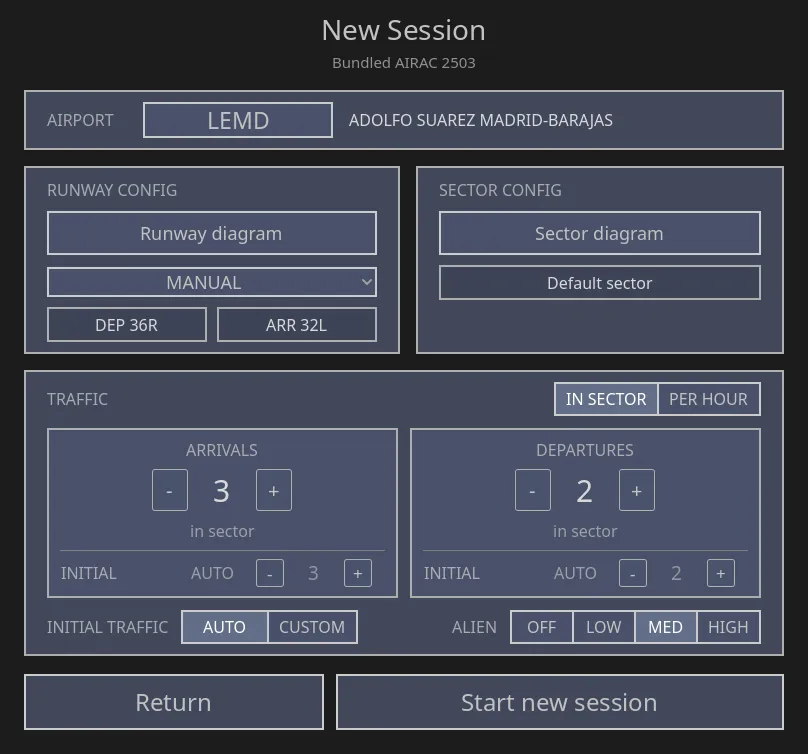
- Select Airport — find an airport with its name or its four-letter code.
- The diagram of runways and sectors — select the arrival and departure runways here.
- Traffic — arrivals, departures and alien traffic.
- Start new session — if this button is disabled, it shows the missing items.
-
Press New Session on the main menu.
-
Select an airport that you know. The layout of an airport that you know helps you more than all other selections on this screen. Use the star to add the airport to your favorites. Then you can select it with one click the next time.
-
Select the runways in use. Open the diagram. Set an arrival runway and a departure runway. Until you do this, the indicators show dashes and the start button stays disabled.
The diagram also shows your sector and the published routes. At this time, it is not necessary to know this diagram.
-
Decrease the traffic. Set arrivals to low and departures to zero. The arrivals come to you one after the other. This quantity of traffic is sufficient for a first session.
-
Press Start new session.
Control one aircraft
Section titled “Control one aircraft”-
Find an arrival that contacted you and is far from the airport. A long distance gives you time to think. If the arrival did not contact your sector, let external ATC descend it. Then wait for its initial call.
-
Middle-click the aircraft. With this click, you assume the aircraft. After this, the aircraft listens to you. You can also put the pointer on the aircraft and press T. Other aircraft do not accept your instructions, and the COM panel tells you this.
-
Read its label. The callsign is on the top line. Speak this callsign first.
Give three instructions
Section titled “Give three instructions”Hold CONTROL and speak. Then release the key. At the start, give one instruction at a time. Wait for the readback before you give the next instruction.
-
Turn the aircraft.
Iberia one two three four, turn right heading one three zero
Monitor the label. The aircraft starts to turn when the pilot completes the readback.
-
Descend the aircraft.
Iberia one two three four, descend altitude five thousand feet
The cleared level on the label changes immediately. The level of the aircraft gets to the cleared level in the next one or two minutes. New in 0.6.3.8 This is true in the Automatic label tagging mode. In Assisted and Manual, you keep or write the new value. See Tagging the label.
-
Decrease its speed.
Iberia one two three four, speed two two zero knots
This is the basic sequence. All other work in the game uses the same sequence with different instructions.
Four methods to correct a problem
Section titled “Four methods to correct a problem”- Cancel the instruction. Speak Iberia one two three four, disregard approximately 10 seconds or less after the instruction. This cancels the last instruction.
- Keep the game slow. During your first sessions, keep the game speed at x1 in the top bar.
- Stop the game. Press P or click PAUSE to stop the traffic. Press Escape to open the pause menu. If a popup is open, Escape closes it first. While the pause menu is open, the traffic does not move.
- Use the mouse. Middle-click the aircraft. Then click its level, route or speed cell. You can click all instructions that you can speak.
You cannot break the game, and the game has no time limit for you.
Next pages
Section titled “Next pages”- How to use the game — all screens, with information about each screen.
- All commands — the full list, in one table.
- Sheet to print — a sheet to keep adjacent to the keyboard.