Settings
Open SETTINGS from the top bar, the main menu or the pause menu.
Two items are the same on all tabs. When you change a row, the row shows a small button that sets it back to its default value. Restore defaults sets only the open tab back to its default values, not all of the game settings.
Settings uses the same layout on all tabs and at all window dimensions:
- Tabs — Display, Audio, Voice, Privacy, Skin and Controls are a row of buttons at the top. You can also use the arrow keys to change the tab.
- Version — the game version shows below the title. When other players help you on Discord, give them this version.
- Cards — each card starts with a small heading in capital letters:
- Display: WINDOW.
- Audio: MICROPHONE and SOUND.
- Voice: RECOGNITION, PILOT VOICE and ADVANCED. Not in 0.6.2.552 Audio and Voice are one tab, Audio and voice: Microphone, Recognition, What you hear and Advanced. The default device shows as System default.
- Privacy: PRIVACY AND DIAGNOSTICS.
- Controls: KEY BINDINGS.
- Help row — this row is above the footer on all tabs. On the left, it shows Stuck or have a question? and a Discord button. On the right, it shows a button with the name of the open tab, for example Restore Audio defaults. This button sets only the open tab back to its default values, and saves only that tab.
- Footer — Return is on the left and Save is on the right.
- Resolution — the rendering resolution. A change has an effect only after the game starts again. The game can start again for you if you agree.
- Window mode — Maximized Window, Windowed Mode, Full-Screen, Borderless Window, or Borderless Full-Screen.
A wider or higher window shows more of the map. The map keeps its correct shape.
Size — Interface, Labels, Symbols and Map text. Symbols also sets the size of trail dots, fixes and navaids. New in 0.6.3.8 Labels goes up to 200 %, and the aircraft labels stay sharp at all sizes. Map text New in 0.6.3.8 sets the size of the text on the map: fix, navaid and procedure names, altitude constraints, airspace, runway, MISC and MRVA text, and the QDM readout. It goes from 80 % to 200 %. In a session, Alt + = and Alt + - make the interface larger or smaller. Alt + 0 sets the default size again. New in 0.6.3.8 Label distance sets how far a label is from its aircraft symbol in AUTO and SEMI, from 10 px to 80 px. The default is 22 px. With the US interface, LDR sets the leader length, and the Label distance row is not available. Each Size row has a slider between the – and + buttons. Each click on a button changes the value by 1 % (Label distance: 1 px). Hold a button to continue to change the value.
Help › Show tooltips — ON shows the short explanations when you put the pointer on a control or on a label cell. OFF hides them. The default value is ON.
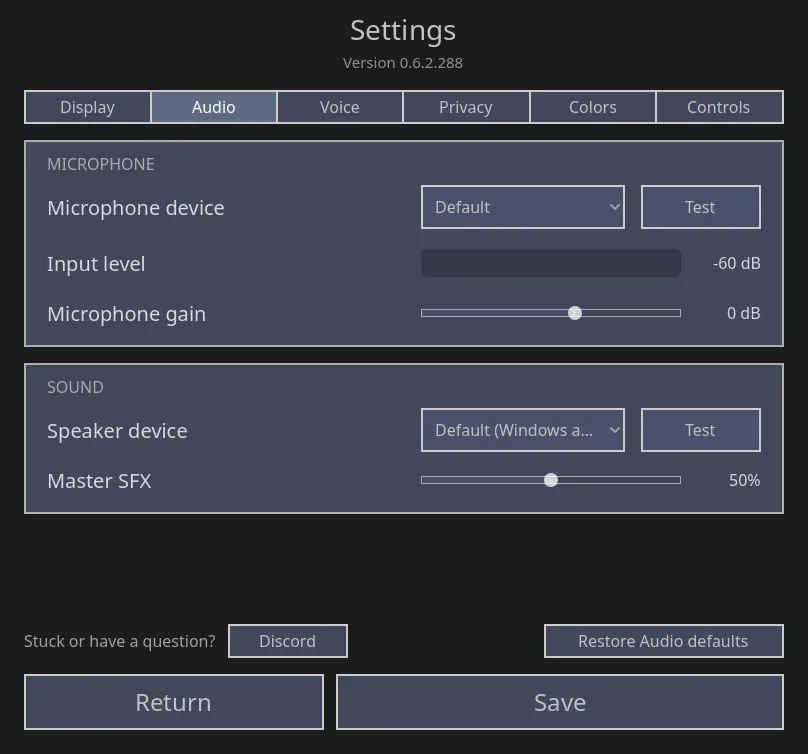
- Microphone device — select the input device. Test plays your recorded voice.
- Input level — when you speak, this meter moves if the game hears you.
- Microphone gain — increase or decrease the input volume.
- Speaker device — select the output device. Test plays one pilot voice.
- Master volume — the total game volume. At zero, the game makes no sound.
Default uses the device that you set for VoiceATC in the Windows Volume Mixer. New in 0.6.3.8 Before, this item was Default (Windows app setting) and the slider below the speaker was Master SFX. To override this device, select a device by its name.
Speaker test. Select Test to hear one pilot voice through the selected speaker. Only one test can operate at a time. If you select a different speaker, the test stops. After you change the device, select Test again.
Radio static. New in 0.6.3.8 The slider below Master volume sets the radio hiss and push-to-talk clicks of each pilot call. At 0 %, you hear only the words. The default is 100 %.
If voice recognition does not operate correctly, examine this tab first. If the input-level meter does not move, the game does not hear you. In that condition, the problem is the device, not the instruction that you speak.
The Voice tab in 0.6.2
Section titled “The Voice tab in 0.6.2”Three cards keep the usual settings apart from troubleshooting:
-
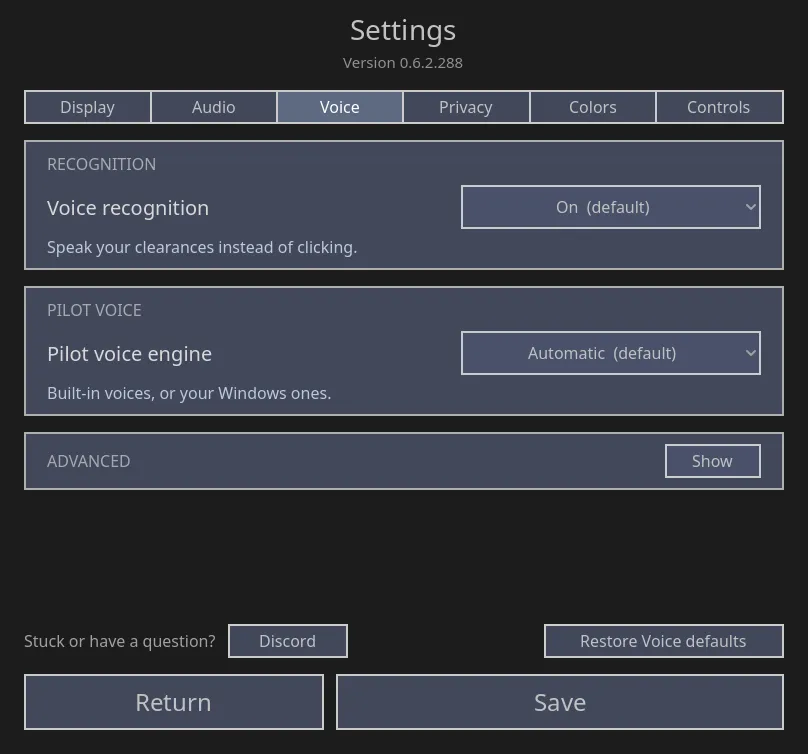
Voice recognition — on or off. Mouse commands are always available.
-
Pilot voice — Automatic, Prefer Kokoro, or Prefer Windows. All of these alternatives use the speaker that you select in Audio.
-
Advanced — this card contains these items:
- The voice check.
- Speed: voice acceleration, and a Now using line with the name of the active hardware.
- Repair: Check for faster hardware.
- Three automatic engine rows.
The heading of this card has a Show / Hide button on the right.
-
Label — Label tagging: AUTOMATIC (The pilot’s readback writes the label.), ASSISTED (Readbacks wait faded until you keep them.) or MANUAL (You write every clearance on the label.). New players start in Assisted, and so does Restore Voice defaults. Lessons set their own mode, and you cannot change it during a lesson. See Tagging the label. New in 0.6.3.8
The voice check shows two items: Can the game hear you? and Can you hear the pilots? Each item shows the date of the last satisfactory check, Never, or a short failure message. The button below these items always gives the name of the next check that it starts.
The automatic engine rows show Okay when the startup checks are satisfactory. On these rows, Okay is not the same as Ready. If you set recognition to off, the tab does not show Speed, Repair and the engine rows. The game keeps the saved checks.
If the same voice problem occurs again, the game shows one of these instructions:
- Examine the microphone signal.
- If recognition cannot decode a signal that it can use, start Check voice.
- Adjust the push-to-talk timing.
If a problem occurs only one time, the game does not show an instruction. For other problems, see Voice troubleshooting.
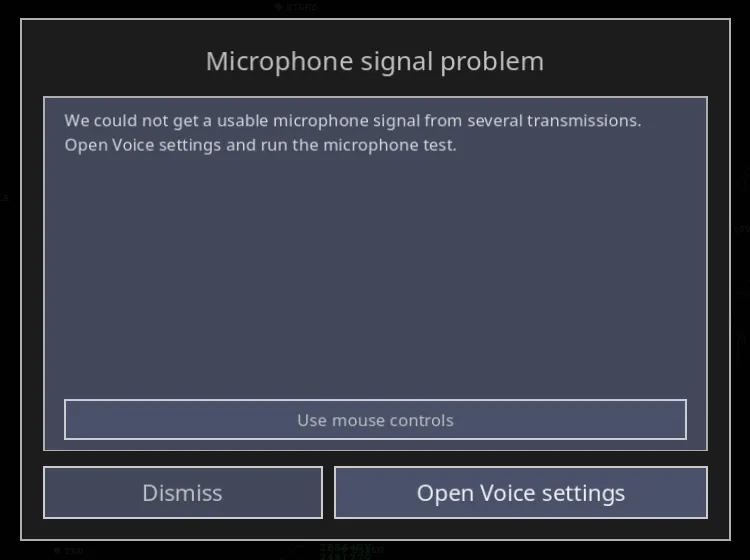
- Use mouse controls — shows the mouse controls.
- Open Voice settings — open the microphone checks and the readiness checks.
- Dismiss — go back to the session. The voice settings do not change.
Noise suppression can remove very quiet input. This is no speech, not microphone corruption. After two recordings with no source signal, the game restarts the input once before your next transmission. If no signal returns, make sure the microphone is connected and not muted. Then start the voice check.
Automatic microphone repair. The game repairs a known Windows audio problem. This problem can cause short parts with no sound in a recording that is correct. If Needs attention continues to show microphone corruption, do these steps:
- In the Windows Sound settings, set the microphone and the speaker to the same sample rate. We recommend 48,000 Hz.
- Start the game again.
- Select Recheck.
| Condition | Step |
|---|---|
| Off | Set recognition to on only if you want voice control. The game keeps the saved checks. |
| Not checked | Select Check voice. |
| Finish check | Select the button. The button shows the name of the missing part, for example Check the pilot voice (Not in 0.6.2.552 Check pilot voice). Only that part of the check starts. |
| Recheck | The button shows the name of the changed microphone, speaker or pilot voice. Only that part of the check starts again. |
| Ready | No step is necessary. If the microphone, the speaker and the pilot voice do not change, the game keeps their checks when the game starts again. To do the full check again, select Check again. |
| Needs attention | The item with the failure shows a short cause. The button starts that part again. |
Not in 0.6.2.552 If voice recognition did not load when the game started, the voice check shows no button, because a new check or a different microphone cannot correct the problem. In Steam, select Verify integrity of game files. Then start the game again.
After a new installation, the voice check occurs in the tutorials, not in a different dialog. When you open Settings from the main menu, Tutorials is above the footer. Tutorials opens the four tutorials. You can do each tutorial again.
- Start the recommended check. The first check examines the microphone and the speaker.
- If the game tells you to speak, speak this clearance: “Speedbird four two one, descend flight level one zero zero.” The game uses the same speech recognition and command system as in a session.
- If the game tells you to listen, listen to the pilot voice. Then select Yes, I heard it, No sound or Replay. You can also change the output device.
- When Voice ready shows, select Done. The result changes immediately.
No sound opens information about the audio route. It does not record a failure. Replay starts the pilot voice again from the start. If you continue to hear no sound, select Done to save this result.
If you change only the microphone, only the speech check starts again. If you change the speaker or the pilot voice, only the audio output check starts again. Updates to the driver, the acceleration or the game do not erase satisfactory checks. If you set recognition to Off and then to On, the checks that agree with your devices are available again.
| Setting | Alternatives | Recommended |
|---|---|---|
| Pilot voice engine | Automatic, Prefer Kokoro, Prefer Windows | Keep Automatic, unless the support team tells you to do a test of one engine. The engine that you select continues to operate when it is slower than usual for a short time. The game uses the other engine only if the selected engine has an error or stops. After a short Kokoro failure, the next pilot calls use Kokoro again. |
| Voice acceleration | Automatic, Graphics card — faster, Processor only — slower | Keep Automatic. If you select the graphics card and the Vulkan check is not satisfactory, the game safely uses the processor. The Now using line shows the active hardware. |
Not in 0.6.2.552 In Pilot voice, the Voice type row has these alternatives. The game keeps your previous selection.
| Alternative | Voice source |
|---|---|
| AUTO | Uses NATURAL first, or LEGACY if necessary. This is the default. |
| NATURAL | Included pilot voices with 16 accent families. These voices speak English and operate locally on the processor. |
| LEGACY | The English voices installed in Windows. |
NATURAL replaces Prefer Pocket and Prefer Kokoro. LEGACY replaces Prefer Windows. If the selected voice type is unavailable, the game can use the other type. The short text below Voice type describes your selection.
Voice acceleration uses Vulkan from your usual graphics driver. The CUDA Toolkit is not necessary. Vulkan and CPU use the same recognition model, thus only the speed changes. The automatic compatibility checks occur during startup. They do not do the microphone check or the speaker check of the voice check again.
The start-up screen examines voice below the logo at these times: at the first start, after a change of driver and after a game update. It shows these checks:
- Microphone.
- Speech recognition, with the graphics card or the processor, and the recognition time.
- Pilot voices. Not in 0.6.2.552 Natural, Legacy, or Off shows the voice state for this start.
- Navigation data.
If all of these checks are satisfactory, the game continues and you do not have to click. The game waits for one click if one of these conditions occurs:
- The game does not find a microphone.
- Speech recognition does not operate.
- On your processor, the recognition time will be more than approximately 3 seconds.
Then you can select Continue with mouse controls (Enter), Check again, or Voice only. If voice can operate on your graphics card, the game closes its window and opens it again. You do not have to do this step.
When recognition is Off, startup does not do its speech check and its Smart check. If you set recognition to On from the main menu, the game does the necessary speech check one time. If you set it to On during a session, the game shows Voice starts next session.
Recognition on the processor keeps capacity for the simulator. After a short time, the status shows Recognizing on your processor… and the time in seconds from the start. The full command continues to use the same model and vocabulary. Check voice also waits longer for processor results, and you can cancel it while it waits.
Speech recognition uses the result of a satisfactory CPU tuning. If the CPU is not tuned, recognition uses a smaller number of workers on small processors. This limit gives more time to the simulator.
When you go out of a session, the game stops all speech decoding that continues. Thus, the game can close before the decoding of that recording is complete.
The minimum RAM for VoiceATC Simulator is 8 GB. Speech recognition has priority when memory is limited. The game can use Windows pilot voices for that session. Your saved settings do not change.
Smart understanding is retired. Voice commands operate without it.
If a game update changes this compatibility check, the game does this check again one time. You do not have to start it. If Now using continues to show Processor only — slower after the game starts again, do these steps:
- Select Check for faster hardware.
- Select Run the check.
Also do these steps after an update of the graphics driver. During the check, the page shows the item that it examines. When the check is complete, the page shows a result message. The simulator starts again only if the faster runtime changed.
Start this check from the main menu. The check loads the voice models into your graphics card, and a session that operates also uses the graphics card. Thus, during a session, the button shows a reminder and does not start the check.
Each new or changed engine has its own short local check, with no sound. A slow engine cannot change the satisfactory result of a different engine. The game keeps the results that agree, and uses them again at subsequent starts. While a session loads, the game shows the name of each active step: Loading voice understanding…, Loading speech recognition…, and Loading pilot voices…. Basic voice functions can become available first.
The game starts to prepare voice at the same time as navigation and traffic. It does not wait until navigation and traffic are complete.
If you use Voicemeeter, compare the selected and actual devices that the check shows for each item. Then examine the VoiceATC route in the Windows Volume Mixer and in Voicemeeter. A routing problem is not a failure of the included pilot voice or the Windows voice.
If the game is not sure about a command, it listens to your recording again. If the command is still not clear, the pilot tells you say again, or speaks about the part that is missing. Voice control does not stop for a long time.
If you make transmissions quickly one after the other, each transmission keeps its own recognition result. When you go out of a session, the game discards the voice results that are not complete.
Diagnostic telemetry is optional. It is off until you agree to it. If you agree, the game can send command text and parser results, without data that can identify you. These data help us to find the cause of recognition problems. The game does not upload raw audio.
Diagnostics also include data about your flights. These data do not identify you:
- The number of flights that you controlled for each type of result.
- The airport, the runway and the procedures of these flights.
- The settings of your session and the frame rate.
Diagnostics can also count frame stutters. They can also measure the time of game subsystems and functions from a specified list. The game sends labels from a specified list and time values. It does not send logs.
If you tell us about a route from the pause menu, the game sends the airport pair and a fingerprint of the route. It does not send the route text.
- Diagnostic telemetry — sets these diagnostics to on or off.
- Export voice diagnostics — makes a local ZIP file. The file contains a disclosure README, a manifest, the last voice result (without data that can identify you), and safe data about the hardware and the audio capture. This function does not use the network. By default, it does not include audio.
- Include latest failed clip — this function is optional. If you agree a second time, it adds the saved recording of the last PTT failure, and its decoder prompt, to that ZIP file. Your speech can identify you. The game does not send the file. Only you can send it.
- Delete saved voice clip — immediately removes the saved recording of the last PTT failure, and its decoder prompt, from your computer.
- Report a problem on Discord — opens the community on Discord, where other players can help you.
- Privacy Policy — opens the Privacy Policy.
- Reset consent — sets consent back to its condition at the first start, and erases the local queue.
Usual game logs do not contain the recording or its decoder prompt. An export of only the diagnostics also does not contain them.
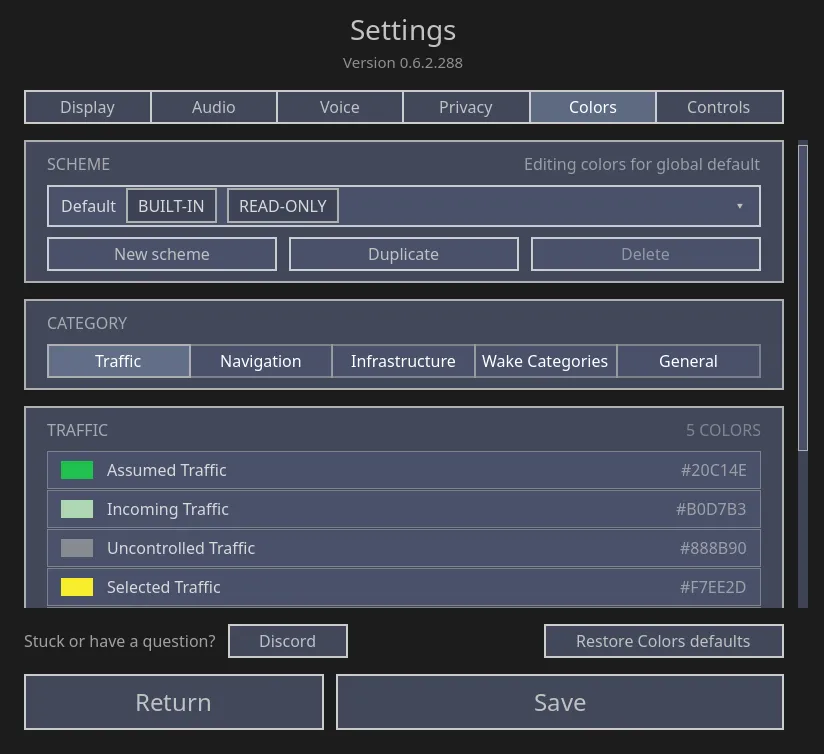
- Scheme list — make, copy or delete your schemes.
- Category — the part of the radar that you give a new color.
- Editor — the color that you set.
Editing colors for … is on the right of the SCHEME heading. It shows the name of the scheme that you change. The categories are one row of buttons.
You can attach a scheme to an airport. An attached scheme helps at an airport with a very different background or with much airspace that overlaps.
If an airport has a published community profile, the airport also uses its local colors, symbols and trail dots. This occurs only when you do not select a community sector. If you attach your own scheme to the airport, the game uses your scheme and not the community profile. A scheme that you select during a session attaches to that airport. A scheme that you select in the main menu does not replace a community profile.
Community profiles can also change the appearance of the session controls. Their functions and click counts stay the same. The default scheme uses square trail dots of 3 pixels. Community schemes keep their own trail-dot dimensions.
Skin. This tab has the name Skin. It has two views. In INTERFACE, select Realistic to use the real interface of each airport, or select one interface for all airports. You can also select an interface for only the current airport. In COLORS, you change the scheme colors and also the colors of the selected interface. If you selected an interface for an airport before, the game keeps it and uses the built-in interface for that region. The Spain and US interfaces are part of the game. You do not download them from the community.
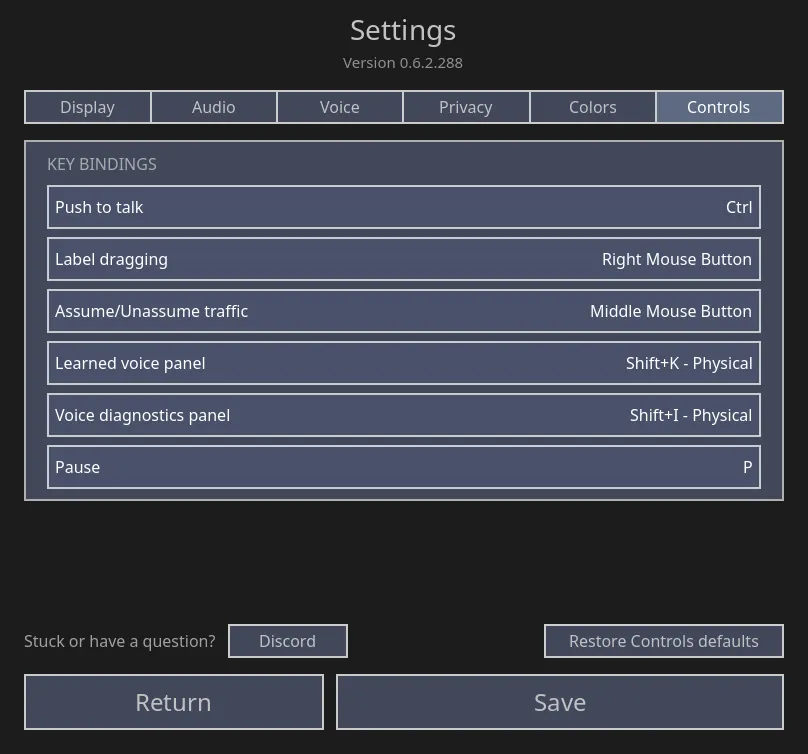
This tab shows all game functions and their key bindings. To change the key binding of a function, select its row. You can also change the key for push-to-talk. To cancel a change, use the small button on the row. To set all of the tab back to its default values, use Restore defaults. With Push to talk mode set to TOGGLE, you press the key to start and again to send (Mouse and keys). New in 0.6.3.8
Two rows give control of aircraft. Assume/Unassume traffic is the middle mouse button. Assume/Unassume traffic (key) is T: put the pointer on an aircraft and press the key. The two controls operate at the same time. Not in 0.6.2.552 The two rows have the names Assume or hand off traffic and Assume or hand off traffic (key). Not in 0.6.2.552 The label keys also have rows: Route menu (W), Level menu (A), Speed menu (S), Heading menu (H and keypad /) and Keep readbacks (Enter and keypad Enter). Not in 0.6.2.552 Callsign menu (C) opens the callsign menu.
The full list of default bindings is in Mouse and keys.